
01.04.26 | Release Notes

Justin Watts
01 April 2026
What's New in Ailo
01.04.26
Project Durations

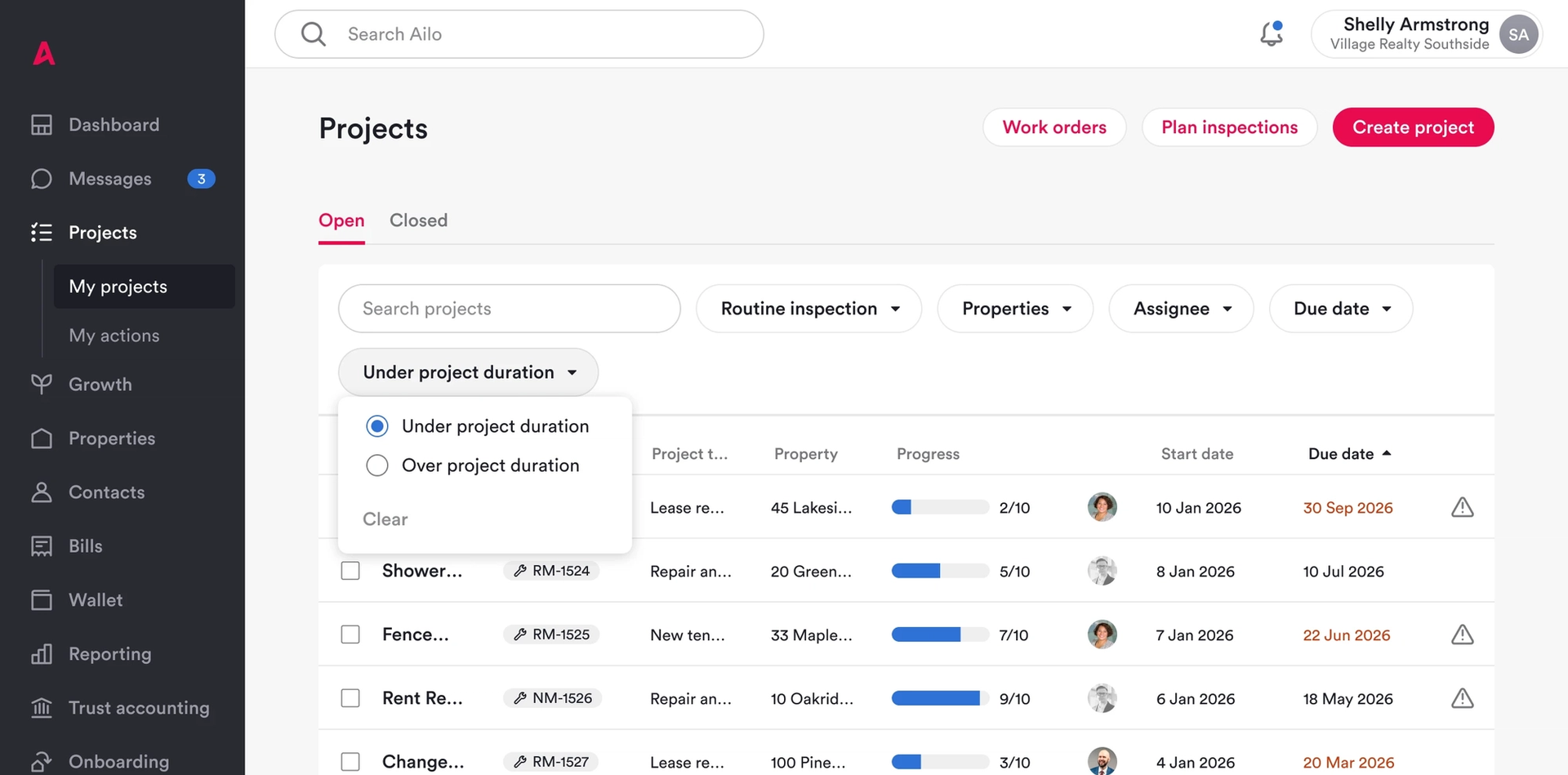
What: You can now set an expected duration on project templates, and Ailo will auto-populate the due date when a project is created. Projects that run over their expected duration are clearly flagged.
Why: Due dates on projects were previously set manually and could drift without anyone noticing. Team leads had no quick way to see which projects were taking longer than expected, making it hard to spot bottlenecks or identify process issues across the portfolio.
How: Head to your project templates in Settings and add an expected duration (e.g. 30 days). When a project is created from that template, the due date is set automatically. Projects that exceed their expected duration show a warning icon on both the project and the project list, with a tooltip showing how far over they are. Use the new "Duration" filter on the project list to surface all over-duration projects at a glance.
Inspection Syncing Status
What: Property managers can now see exactly who has synced their inspection data and who hasn't, before they finalise a report.
Why: The previous upload state was ambiguous. There was no visibility into which team member hadn't synced or how much data was outstanding. PMs would sometimes finalise reports with missing photos and then raise support tickets for something they could have resolved themselves.
How: Open an inspection and check the sync status panel. You will see each participant listed with their name, device, and item count (photos, conditions, comments), along with a clear status label: ready to sync, uploading, upload complete, unsynced changes, or offline. If you try to finalise with unsynced changes, a warning modal shows exactly who is behind and what is outstanding. Available on both the PM mobile app and desktop.


Convert to Bill from Message Attachments

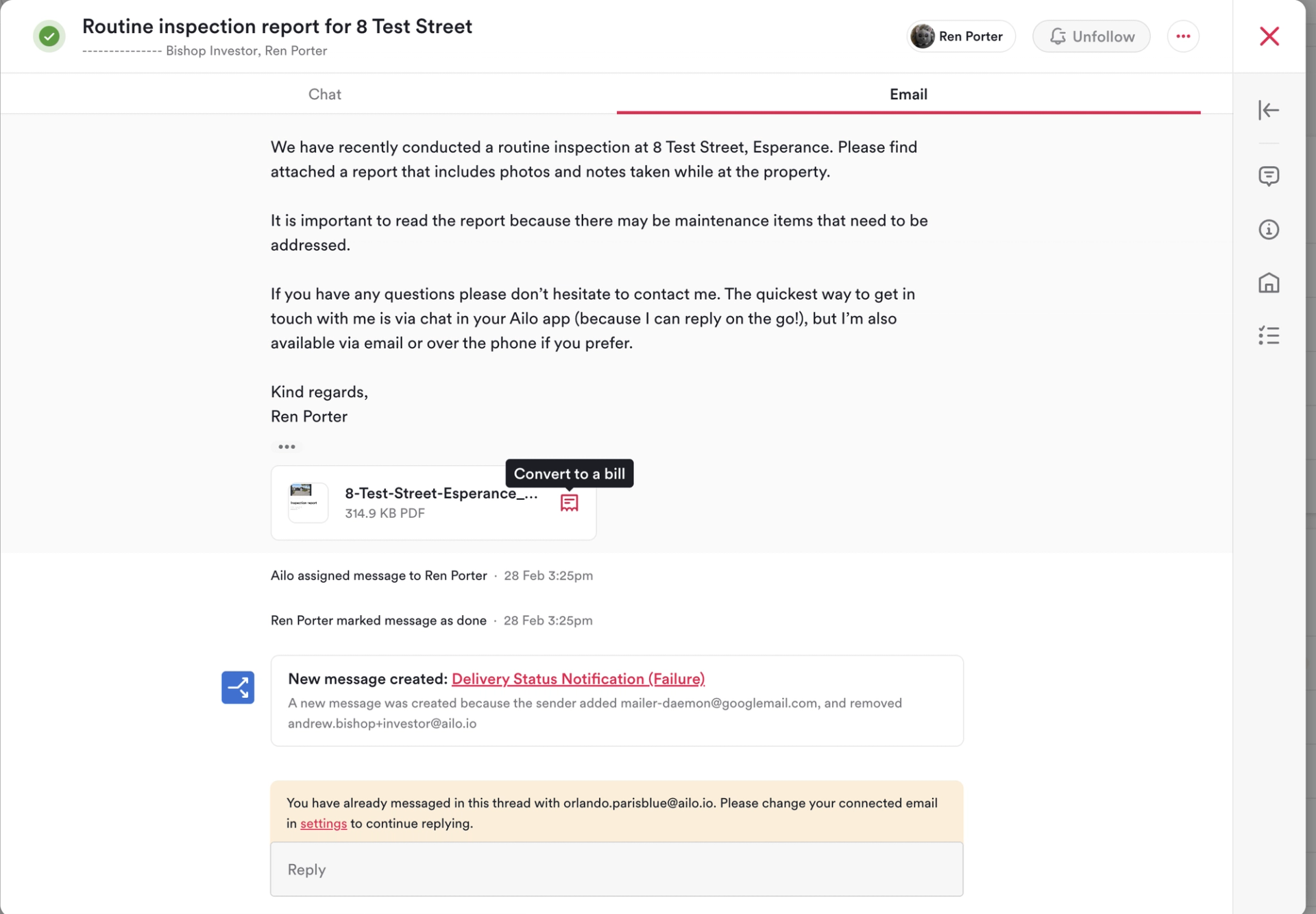
What: There is now a "Convert to bill" button that appears when you hover over an attachment in messages, letting you create a bill directly from an invoice or document received via email or chat.
Why: Property managers frequently receive invoices as email attachments that end up in Ailo messages. Previously, creating a bill from one of these attachments meant leaving the message thread, navigating to bills, and manually attaching the file. This shortcut keeps you in context and saves multiple clicks on every bill.
How: Open a message thread containing an attachment. Hover over the file and click "Convert to bill". The add bill form opens with the attachment already included. If you have Bills AI enabled, it will automatically start extracting details from the document.
Shoutout to Sophie, Brisbane for requesting this feature and helping shape the final design.
Supplier Recipients in Message Actions
What: Property managers can now set suppliers as default recipients when creating or editing message actions in Repair and Maintenance project templates.
Why: Following up with suppliers during an R&M project previously required manually looking up and adding contact details each time. Now you can bake supplier communications directly into your project templates, so follow-ups like "Chase suppliers for quotes" or "Send work order" happen automatically with the right contacts pre-filled.
How: Edit a Repair and Maintenance project template and add or edit a message action. You will see two new recipient group options: "Quote request suppliers" (creates a separate message per quoted supplier with their contact details pre-filled) and "Work order supplier" (pre-fills the supplier assigned to the work order). If the relevant action hasn't been completed yet, the compose window opens empty for manual entry.


Pay Bill Button - Better Placement

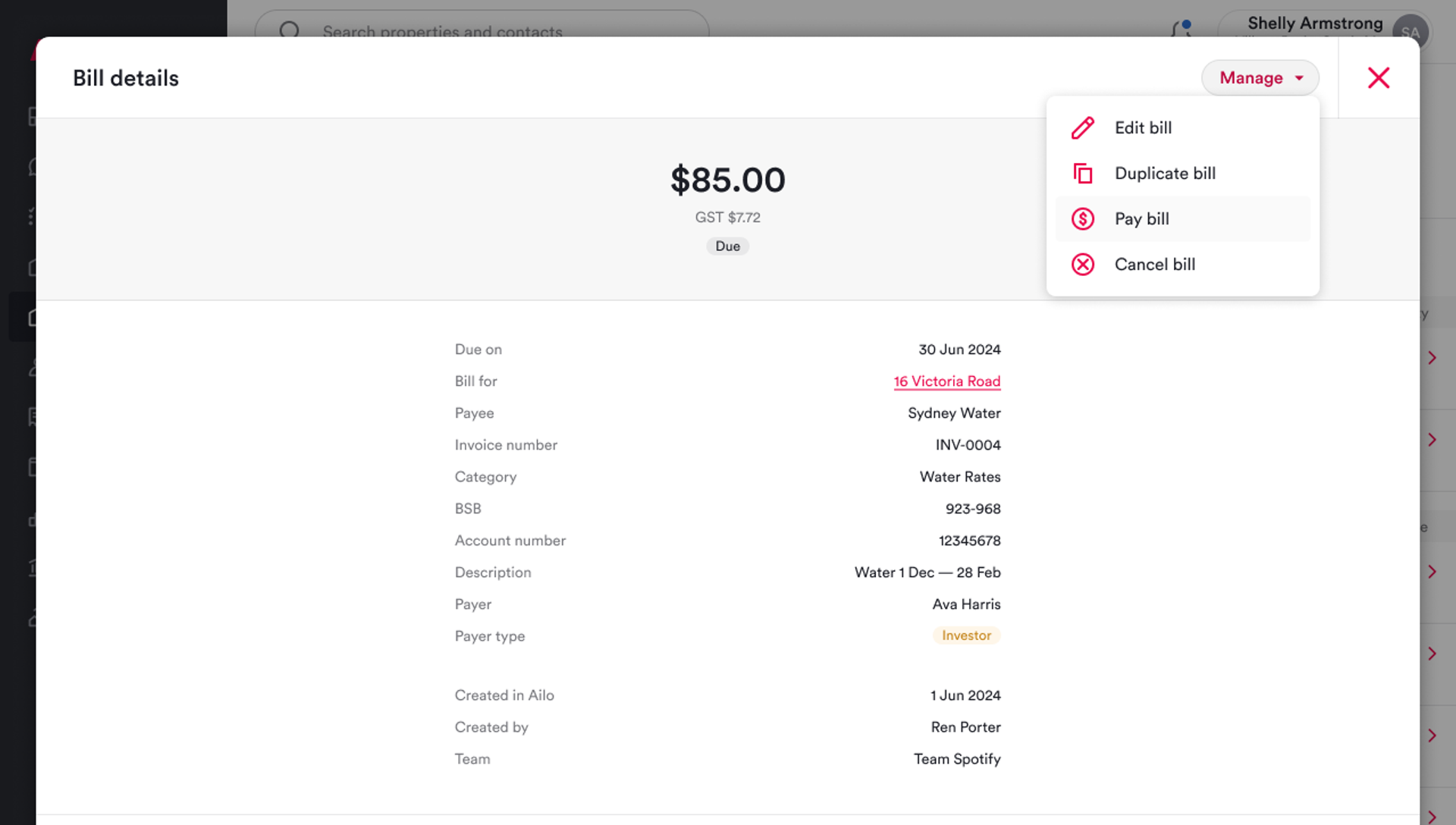
What: The "Pay bill" button is now more prominently placed on the bill details screen, accessible without opening the Manage menu.
Why: Since launching the ability for PMs to pay bills immediately, customer insight showed that some property managers didn't realise they had this power because the button was tucked inside the Manage dropdown. Moving it to a more visible location ensures PMs can find and use it when they need to.
How: Open any bill and you will see the "Pay bill" button directly on the bill details screen. All underlying business rules and permission requirements remain unchanged.