01.07.26 | Release Notes

Ailo
01 July 2026
What's New in Ailo
01.07.26
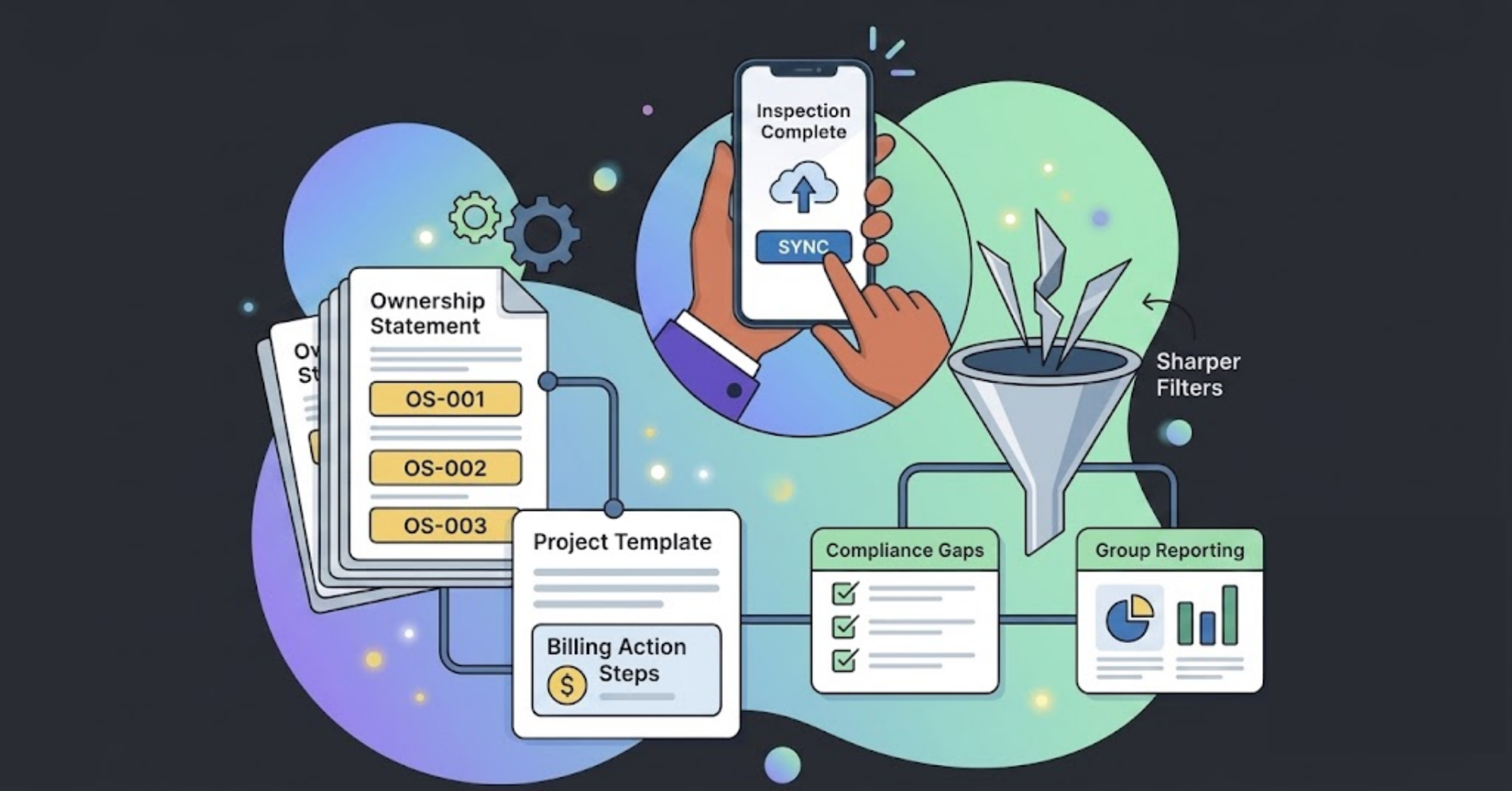
Ownership and Transfer Summary numbering
What. Ownership statements and transfer summaries now include a unique reference number, starting fresh from 1 July 2026.
Why. We are adding sequence number to investor statements as a way to help investors identify and reconcile these over time.
How. No action needed. From the start of the new financial year, all new ownership statements carry an OS prefix (e.g. OS-001) and transfer summaries carry a TS prefix (e.g. TS-001).
Please note that the first monthly statements for the new FY will go out on 1st August for the July period. End-of-financial-year statements and custom-generated statements are not numbered.


Bill action in project templates

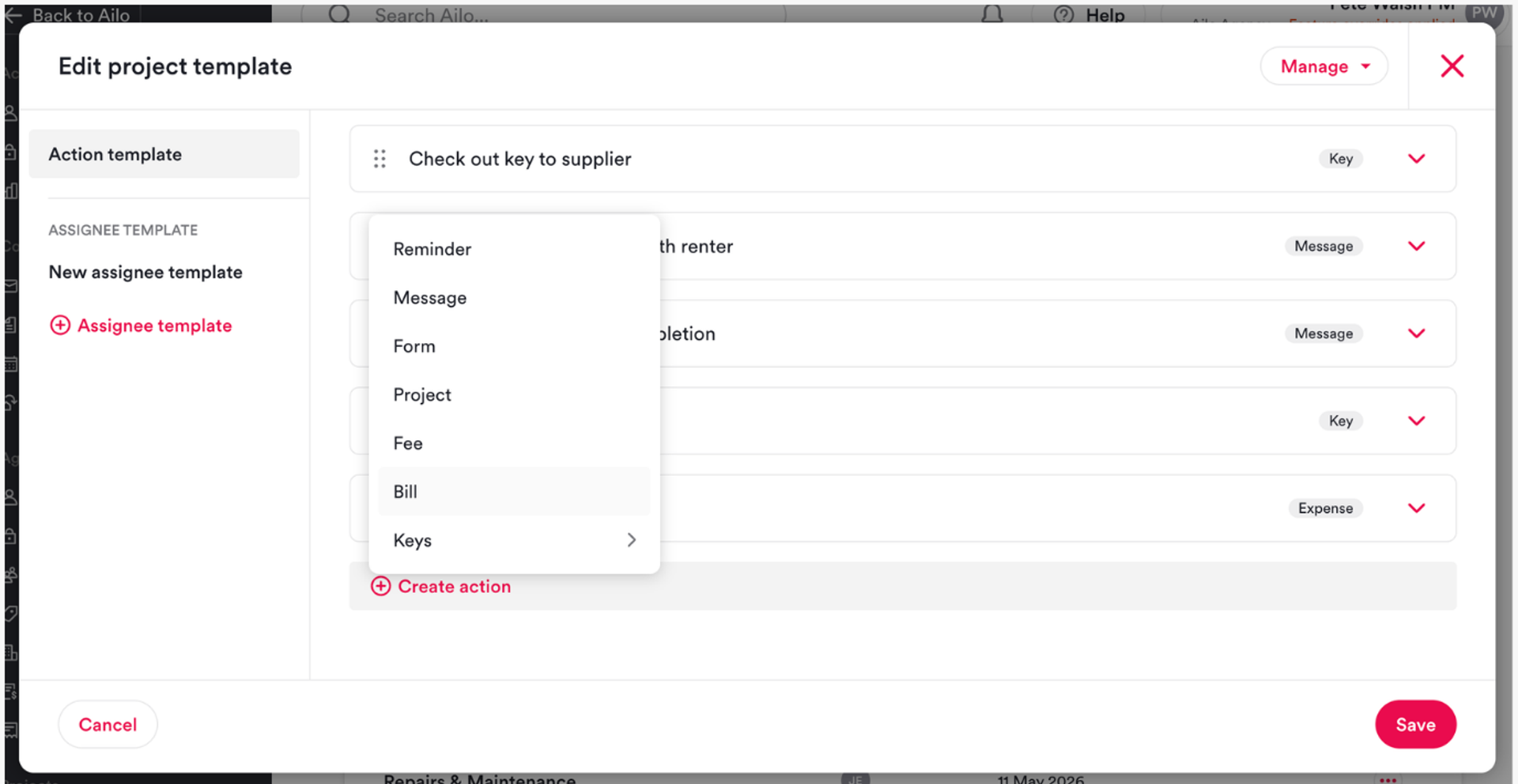
What. You can now add a bill action step to your agency project templates.
Why. Until now, bill actions could only be added ad-hoc to in-flight projects - they could not be built into the templates your team uses every time. That meant extra manual steps every time a project was created. Now your templates can include billing steps from the start.
How. Open your project templates in agency settings and add a bill action step as you would any other action. Any existing in-flight projects are unaffected - you can still add bill actions to those ad-hoc as before.
Sync All for mobile inspections
What. A new Sync All button on the mobile inspection screen lets you upload multiple inspections at once.
Why. Property managers with a full day of inspections had to sync each one individually. Sync All means one tap handles all pending uploads in one go.
How. Tap Sync All in the top-right corner of the inspections screen in the Ailo mobile app. For large inspections we recommend syncing over Wi-Fi so uploads finish faster and you can keep working on your laptop while the app handles the rest.


Compliance not-set-up filter

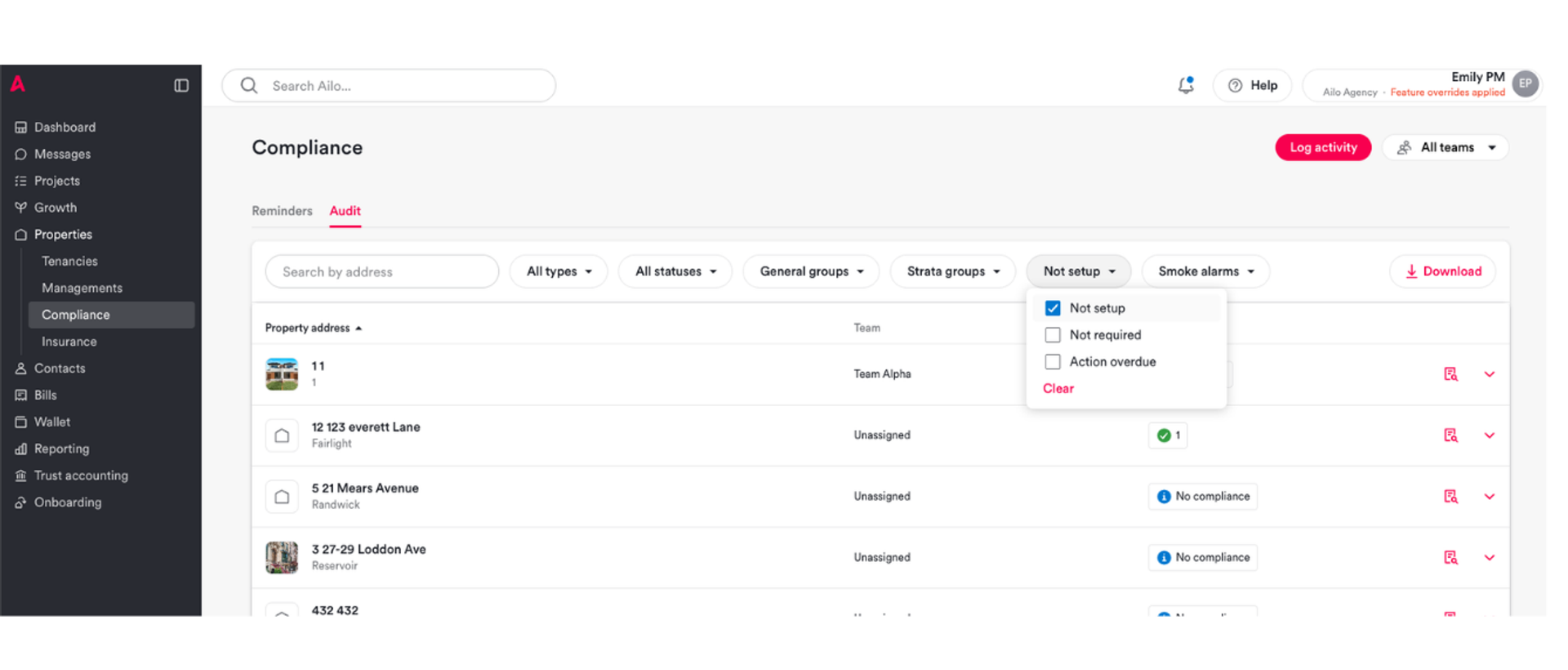
What. A new filter on the compliance audit tab lets you see properties where compliance has not yet been configured.
Why. Previously, the audit tab only showed compliance that was overdue or marked as not required. There was no way to surface properties where compliance had never been set up. For agencies with large rent rolls, this made it hard to confirm every property was being tracked.
How. Go to the compliance audit tab and apply the "Not set up" filter. You can combine it with a compliance category - for example, smoke alarms - to identify specific gaps across your portfolio.
Shoutout to Joanne, Caroline Springs and Mel, Newcastle for flagging this gap and helping shape what we built.
Groups filter for management reports

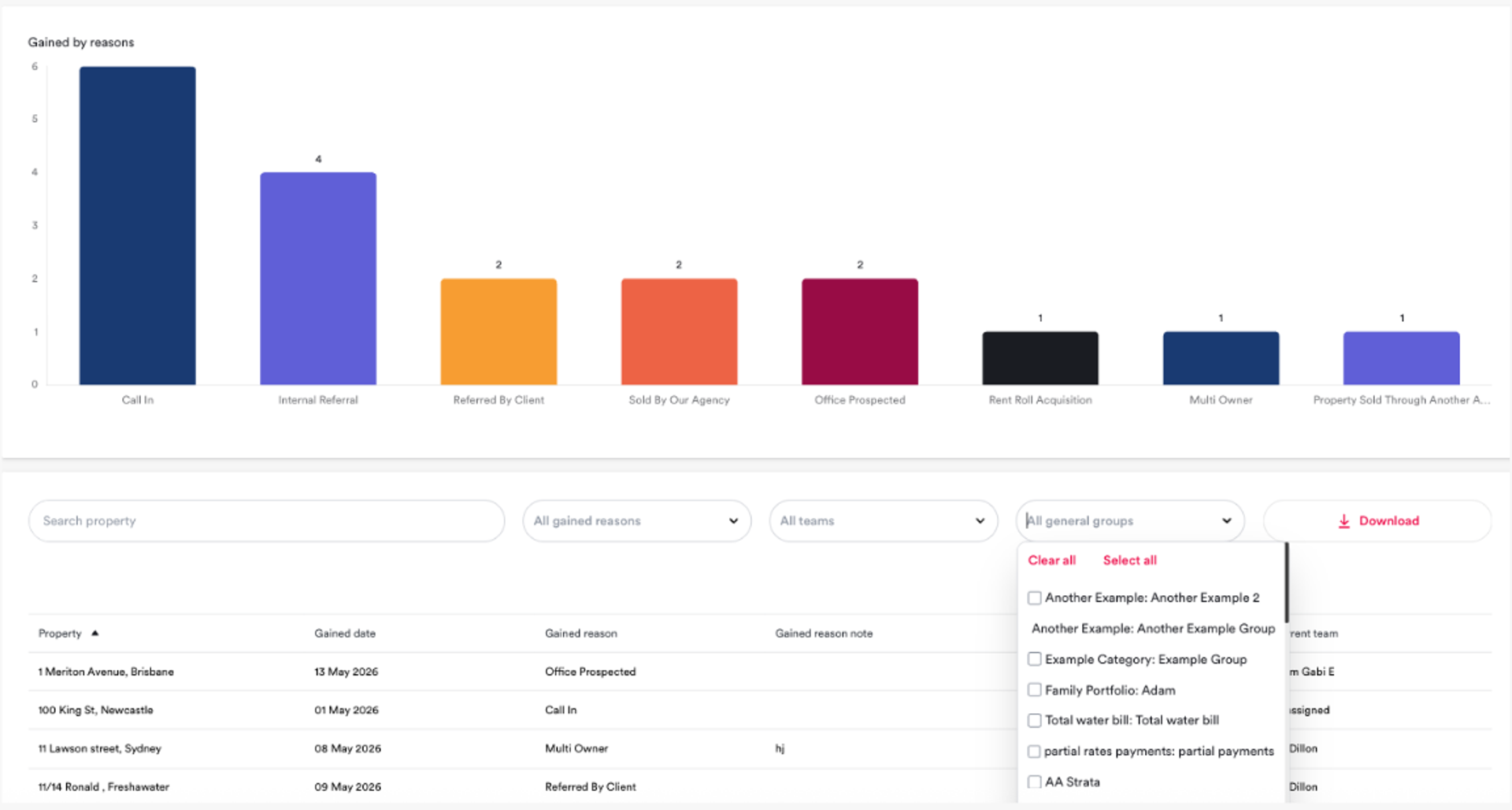
What. Management overtime reports - total, lost, and gained - now support filtering by group.
Why. Agencies that manage properties across multiple internal entities or family groups had no way to separate these in reports. The groups filter makes it easy to review the performance of each entity or group on its own.
How. Open any management overtime report and apply the Groups filter to narrow results to a specific entity within your agency.
