
30.09.26 | Release Notes

Ailo
30 September 2026
What's New in Ailo
30.09.26
Inspections, revamped 🔑
Side by side inspections
What: Link an earlier inspection and see its photos, conditions and comments alongside each area and feature while you inspect.
Why: Spotting changes between entry and exit no longer means printing the ingoing report or flipping between documents. Your team gets a clear, itemised comparison to share with investors and renters, and stronger evidence if a bond is disputed.
How: Open an inspection on web or in the Ailo PM app and select "Link previous inspection" (the "Link" button in the app). Routine inspections link to routines, and ingoing and outgoing inspections link to each other. When creating the condition report, turn on "Include linked inspection" to show both inspections per area: conditions and comments side by side, then the photos from each. Areas and features are matched by name, and you'll need at least one earlier inspection completed in Ailo to compare against.


Templated inspection comments
What: Save default conditions and a comment for each feature in your Area templates, and Ailo offers to fill them in on ingoing and outgoing inspections.
Why: For properties with similar layouts, like new builds, your team no longer retypes the same comments on every report. Reports get finished faster, and Ailo never overwrites anything you've already entered.
How: Add default conditions and comments to your Area templates. Next time you open an ingoing or outgoing inspection, Ailo will offer to fill them in. You can also now change a property's inspection layout template after it has been inspected, on an untouched inspection and after confirming the change.


Repairs from inspections
What: Create a repair straight from an inspection, using the photos you've already taken.
Why: Issues spotted on-site no longer need to be re-entered at the office. Finish the inspection and log repairs in one pass, with past repairs visible while you inspect.
How: Tap the spanner icon on any area or feature, or select "Create repair" under "Inspection repairs" for the whole inspection, on mobile or web. Attach inspection photos or take more, then set the priority, dates and assignee. The repair opens as a normal Repair and maintenance project, linked back to its inspection.

Paperless key sheets
What: Sign keys out and back in digitally, with the signed key sheet added to the condition report.
Why: No more lost paper sign-out sheets. Renters sign in the Ailo app, and your agency keeps a clear, itemised record of the keys for every tenancy.
How: Create a key sheet from the New tenancy project or during the ingoing inspection. The renter signs in the Ailo app and the keys check out to the tenancy. At vacate, sign the outgoing key sheet to check the keys back in. Re-sign sheets cover a change of shared tenancy or replaced keys. If your agency uses its own project templates, add the key sheet actions from the Keys group.

Clickable 360 photos
What: 360 photos in ingoing, outgoing and routine condition reports now include a "View 360º image" link and a QR code that open the full 360 view.
Why: Owners and renters can look around the whole room rather than a single flat photo, with no login needed.
How: Nothing to set up. Reports created from now on add the link and QR code next to each 360 photo. For privacy, viewers are asked for the property's postcode once a report is more than 14 days old. Standard photos aren't clickable.

Last rent increase, wherever you need it

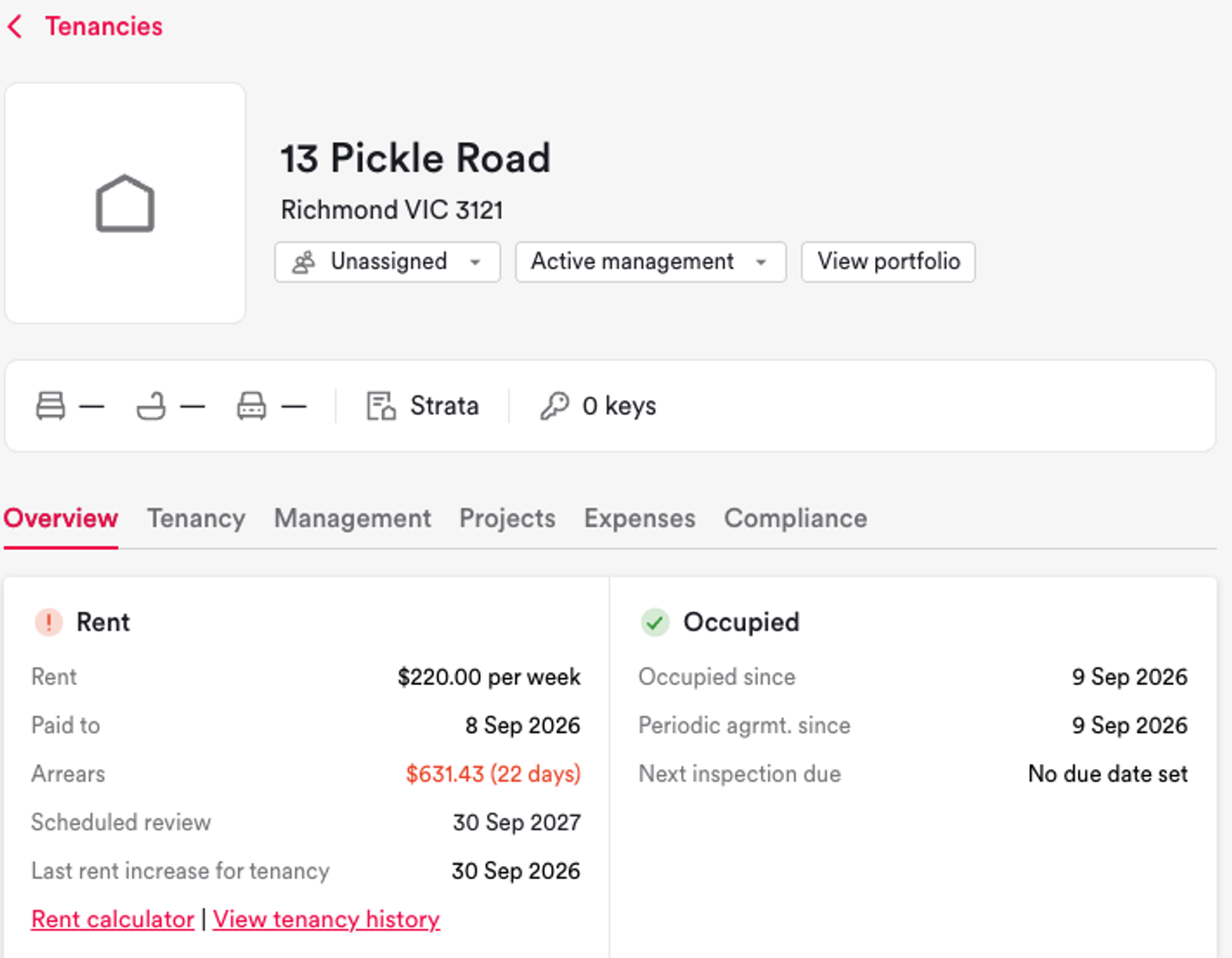
What: The last rent increase now shows on the property's rent details card, is available as a merge field, and pre-fills on Queensland tenancy agreements.
Why: See when rent was last increased at a glance, quote the date and amount in rent review messages without looking them up, and in Queensland, get the mandatory "Day of last rent increase" on the Form 18a filled in for you.
How: Look for the new "Last rent increase" line under the scheduled rent review on the property page. In emails and messages, use the new merge fields: Property last rent increase date and Property last rent increase rent amount (Management group), or Last rent increase date and Last rent increase rent amount (Tenancy group). Queensland agencies should use Property last rent increase date when quoting the date the 12-month rule runs from. Always check pre-filled dates before sending a message or issuing an agreement.
Clearer payment details for renters

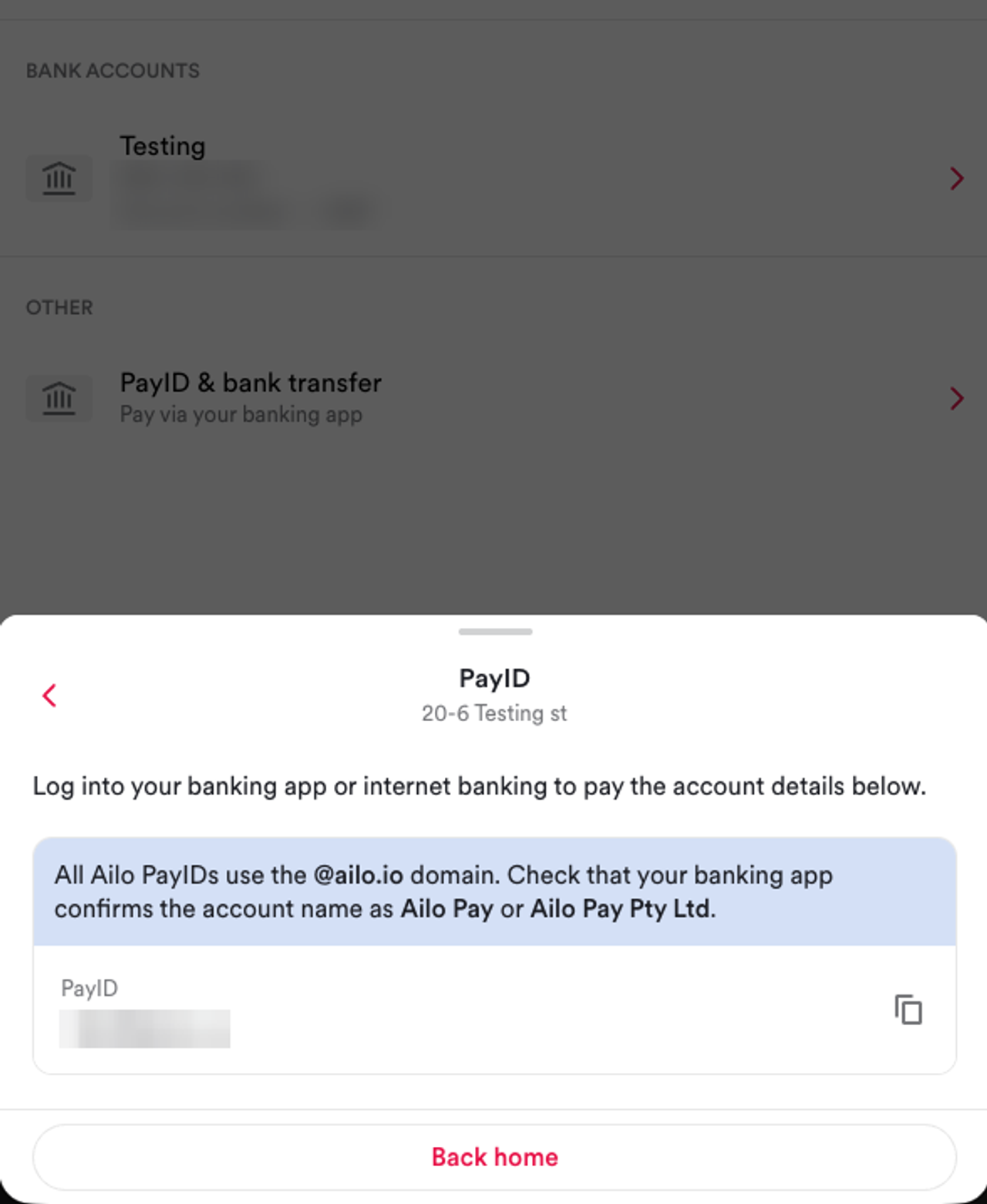
What: PayID and bank transfer details for renters' personal accounts now sit on separate screens, each with a prompt to check the payee name.
Why: Checking that the payee name shows as Ailo Pay or Ailo Pay Pty Ltd in their banking app is the best way for renters to know they're paying the right account - the new screens make that step clear.
How: Nothing to set up. Renters with access to PayID and bank transfer will see the new screens automatically.
Rent reviews with a past date, now for every agency

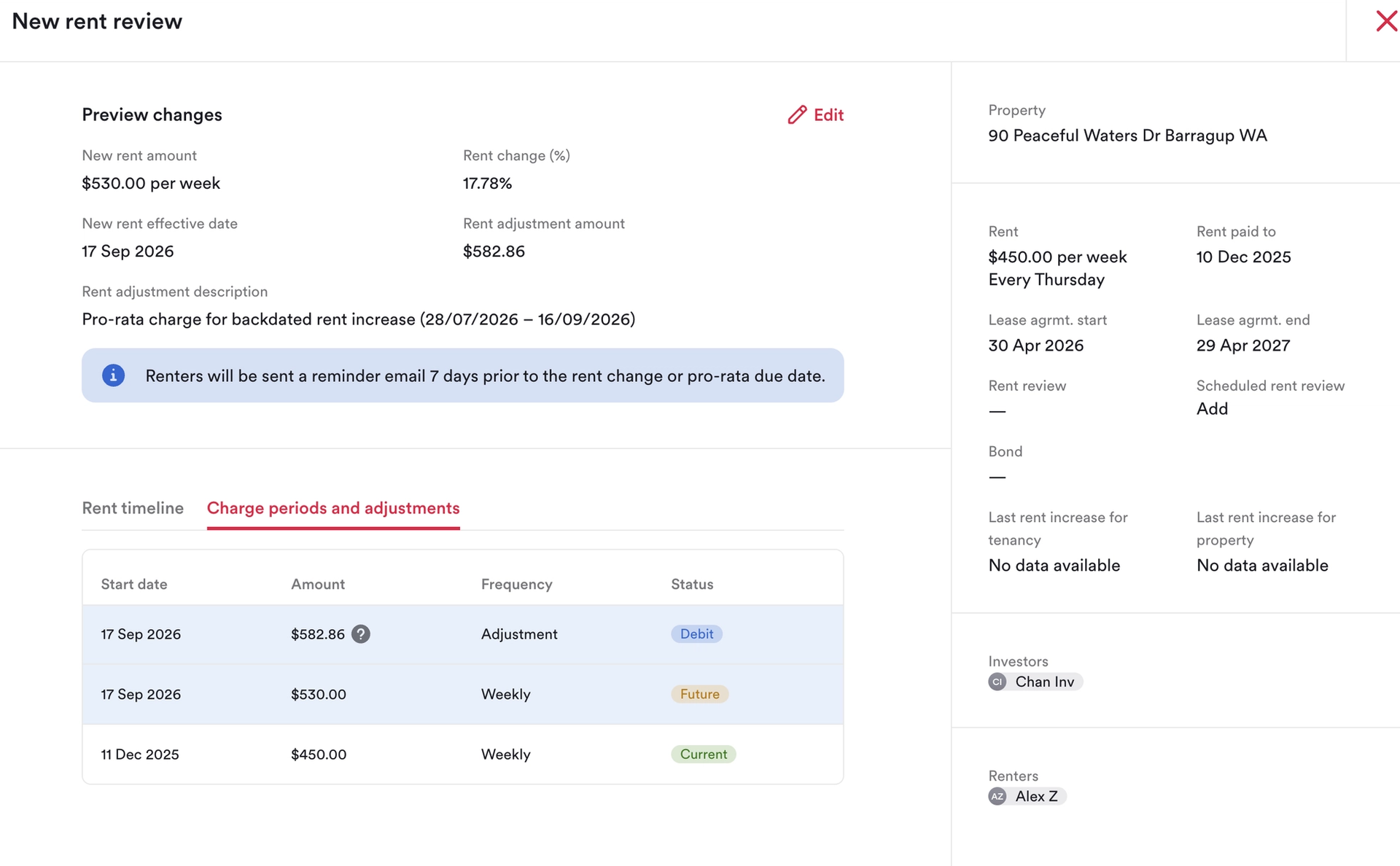
What: Choose a past date when entering a rent review, and Ailo calculates and applies the missed rent for you.
Why: If a rent review was missed, you no longer need to contact support or work out the pro-rata yourself. It's also handy for commercial reviews if you had to wait for actual CPI figures.
How: When entering a rent review, choose the past date it should have started from. Ailo schedules it as a future rent review and automatically calculates and applies a pro-rata adjustment for the missed period.
Bonus: Amend first rent
What: If a tenancy is starting earlier or later, or if you find a mistake on the first rent, you can now use “Amend first rent”. It allows you to edit the amount, frequency, and start date of the rent charge. It’s only available for the first rent for a period of 2 months since the start of tenancy, and not available if you have other rent changes after the first rent.
Why: We know that even the best-laid plans can change. A renter might have been able to move in earlier and you want to start the charge earlier; or you pressed a key too many times and set the rent as $7,000 instead of $700. Now these are easier to change. Be mindful of the impact on ledgers though.
How: First, assess if changing the rent is the best path or if a rent review and/or adjustment would be better. If you want to amend the first rent, go to Manage rent from the property page, tenancy tab, click on the options of the first rent and choose Amend rent. Edit what you need, and save. This feature is available only to users with the Finance Manage permission, so if you don’t have it, contact someone in your agency who does.
